
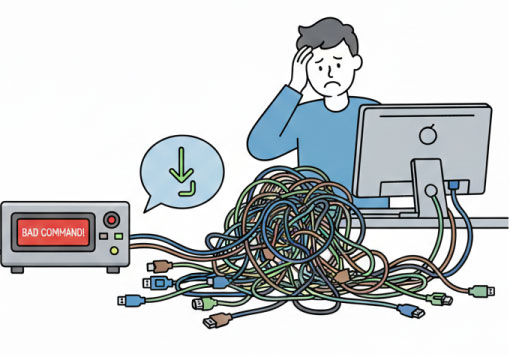
I’m currently writing some automation for a piece of equipment I would classify as difficult to communicate with! And like you should never end a sentence with a preposition, this particular piece of equipment, every command must end with a LineFeed (i.e., char 10). If you send it two commands but don’t end each command with a LineFeed, then it will ignore both commands and beep at you, “BAD COMMAND!” When you look at each command in the Manufacturer’s Programmer’s Reference, the commands are 100% correct.
Like I said, “Difficult!”
This article is mostly me ranting, because over the years, I have seen just about everything and know what to try next. I have a very large bag of tricks, all from trial and error.
Each trick was hours of head-scratching. Why didn’t that work? Walking away, sometimes for days, then the answer appears. Or worse, it just works, and I changed nothing. So I thought I would write a short article on some of the tricks of the trade.
First, check the connection. I once spent hours on the phone with someone whose equipment wasn’t connected. And I have done it too. Hours of troubleshooting, then called technical support only to find out the unit has two GPIB connectors.
Next, test the connection with something simple. Most equipment will respond to an *IDN? This is not only good for testing the connection initially, but also handy for periodically checking that the equipment is not locked up. When the equipment is not behaving, send it a quick *IDN? The instrument should return the Manufacturer, Model Number, Serial Number, and Firmware in a comma-separated string. Quick Sidenote: If you get something different back, that could mean the read buffer is full. I have worked with some instruments that will return “Done” after every write command. Before I could get the return value, I needed to clear the Read Buffer.
When working with TCP/IP instruments, it is a good idea to open a command prompt and run “ping ” of the instrument before attempting to communicate with the device. The ping will test the route between the PC and the instrument; it will tell you whether the instrument can be reached and how far away the instrument is in milliseconds.
Next is the TCP/IP Port number. TCP/IP supports 65,535 ports. Most people know port 80 for http:// webpages or 443 for https:// webbages. But an instrument can use any port – some instruments can use multiple ports simultaneously.
If the instrument is an LXI/VISA compliant device, it will most likely use port 111 or port 5025. National Instruments’ NI Max has a great tool for setting up TCP/IP instruments. While you are working on the configuration, you can test the connection by pressing the “Verify Button.” It can save a lot of time.
Another thing to keep in mind when communicating with TCP/IP and some USB devices is that the connection is a session. If the PC and the UUT lose their connection, the session is terminated. The session, and most likely the user interface, is dead. You will need to close the application and reestablish the connection.
Speaking of sessions, RS-232 and RS-485 COM port connections support only a single connection. GPIB-488, TCP/IP, and some USB devices support multiple connections from the PC to the instrument, whereas serial connections are limited to a single connection.
While I’m on the topic of COM Ports, I can’t stress this enough: READ THE MANUAL! You have to get the wired connection from the PC’s pinout to the UUT’s pinout correct! If the UUT wants the connection on pin 2 and the connection is on pin 9, it will not work!
Next is the configuration. Baud Rate, Data Bits, Parity, Stop Bits, and Flow Control all need to be set on the PC and the UUT. One wrong setting and nothing works.
Finally, I will end on USB. USB for Test Equipment will come with three types of communication:
First, USB-488/USBTMC-compliant devices are the easiest to work with; the drivers are standardized and are included with most I/O packages that include VISA Drivers. When these devices are connected, they will show up with the *IDN? response for the instrument.
Second, many manufacturers will use a USB-to-serial device in their equipment. When you connect the USB cable to the PC, it detects a COM port and can install a standard driver. When the device is connected, they will appear as COM# (e.g., COM5).
Finally, some manufacturers have specific communication drivers for their equipment. You will need to install the manufacturer’s specific software. Without their specific software, the device will appear as an unknown device.
Happy Troubleshooting, I hope this helps.

Leave a Reply
You must be logged in to post a comment.